 Z9 Monitor by Z9 Systems
Install and activate Z9 Monitor
About 15 minutes from download to your first board. You need one Windows Server VM (2019, 2022 or 2025 – 4 vCPU, 8 GB RAM and 100 GB disk recommended) and an administrator account on it.
1Download the setup program
Get the download link on the download page (free 14-day trial – every feature included). Copy Z9Monitor-Setup.exe to the server.
2If Windows says "Windows protected your PC"
Windows shows this message for new programs it has not seen downloaded many times yet. It is not a virus warning. Click More info, then Run anyway:
Illustration – the message looks like this on Windows Server 2019 – 2025.
Want to be sure the file is genuine? It is downloaded only from download.z9systems.com, and the download page shows its SHA-256 checksum – compare it in PowerShell with Get-FileHash .\Z9Monitor-Setup.exe.
3Run the setup
- Right-click Z9Monitor-Setup.exe → Run as administrator and confirm the Windows prompt.
- Read and accept the licence agreement, then click Install. The setup installs everything Z9 Monitor needs, including its own database – it takes a few minutes and needs no internet.
- At the end your browser opens Z9 Monitor. Choose the administrator password.
4Quick setup
The quick setup connects your VMware, Proxmox or Hyper-V servers, your backups and e-mail alerts. Every step can be skipped and done later in System Settings.
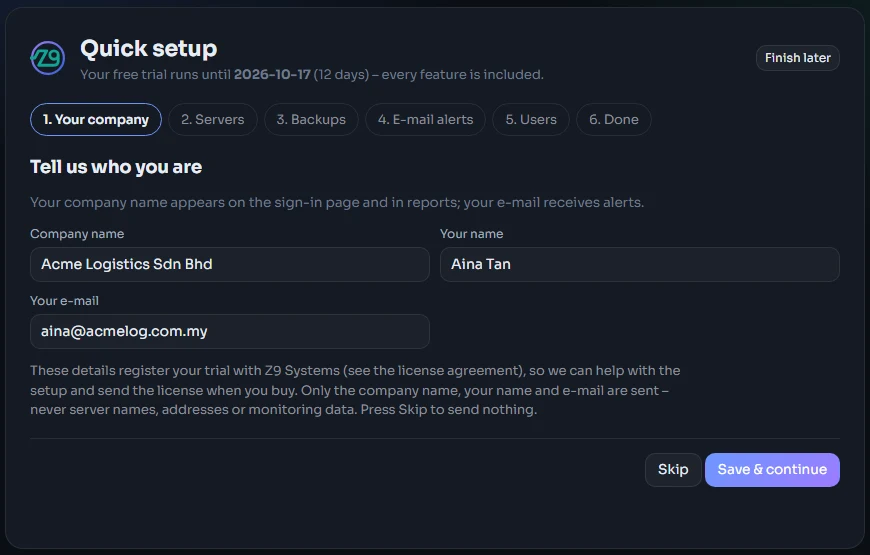
Quick setup, step 1 (demo company).
The trial activates itself online: the server needs to reach license.z9systems.com (HTTPS) once within 3 days. No internet on that server? Ask us for an offline trial licence.
5Activate your licence
After buying you receive an activation key by e-mail (also shown on the payment page). In Z9 Monitor open System Settings → System → License, paste the key under Have an activation key? and press Activate – the licence is active at once.
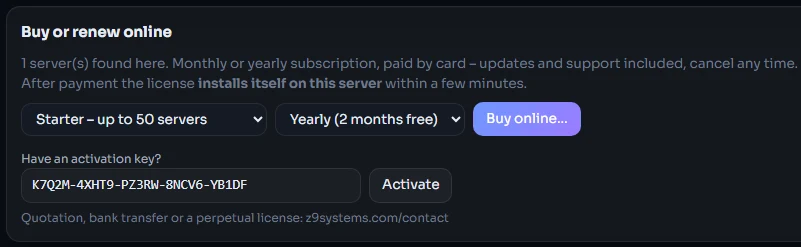
License page (sample key). Bought from this page with "Buy online…"? Then there is nothing to type – the licence installs itself after payment.
Server without internet? Use the activation page on another computer and import the licence file on the License page.
?Common questions
Is it safe to click "Run anyway"?
Yes, when the file comes from download.z9systems.com. Windows shows the message for every new program until enough people have downloaded it – it does not mean Windows found a problem. You can compare the SHA-256 checksum on the download page with Get-FileHash before you run it.
The browser says the connection is not private
Z9 Monitor uses HTTPS with its own certificate. Install its certificate authority on your PCs (System Settings → Security → Security settings → HTTPS → Local CA certificate for the PCs (.cer) – double-click it on a PC, or push it to all PCs with a group policy) – or upload your company's own certificate there.
Where is my activation key?
In the order confirmation e-mail from [email protected] (please also check the junk folder) and on the page you saw right after paying. Lost it? Contact us from the e-mail address you used for the order.
How do I move Z9 Monitor to another server?
On the old server: System Settings → System → License → Transfer & reports → Export / transfer license… Then install Z9 Monitor on the new server and enter the same activation key there.
How do updates work?
Z9 Monitor checks for updates every day. System Settings → System → Status → Software update shows what a new version brings; Install update now downloads, checks and installs it – your data and settings are kept.
Still stuck? Contact support – a screenshot helps us answer faster.